Portable SSD or desktop hard drive for a home backup
Choose the drive around your backup routine, version history, software, and ability to restore the files.
As an Amazon Associate I earn from qualifying purchases. How our shopping links work.
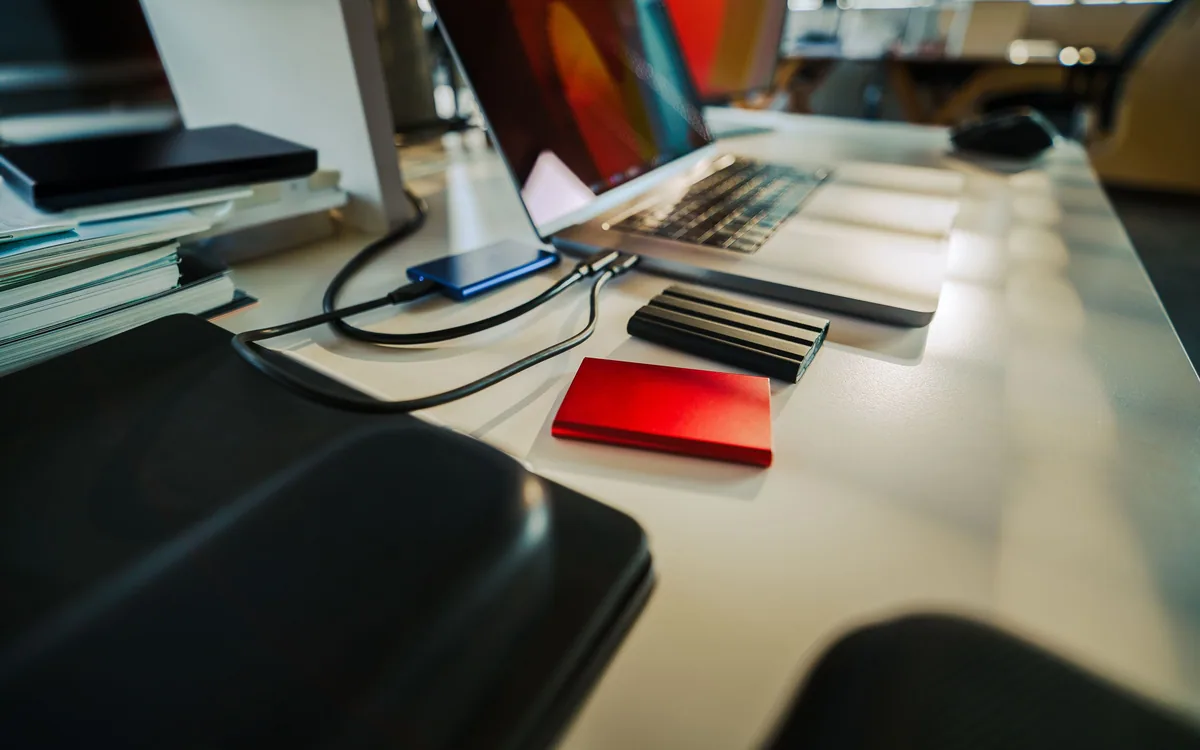
The short answer
A portable SSD suits frequent laptop connections; a desktop hard drive suits a fixed backup station. Either still needs a verified second copy and a restore check.
Decide which files must exist in two places
Open the folders you would miss if the computer disappeared tomorrow. Include photographs stored outside the main photo library, documents on the desktop, and files on another external drive. A drive bought to empty an overcrowded laptop becomes the only home of those files once you delete the originals. That is an archive to protect, not an additional backup copy.
Make a short inventory with a location and approximate size for each folder. Then identify what your backup software actually includes. A successful backup of Documents says little about a video project saved somewhere else. Before comparing a portable SSD with a desktop hard drive, establish the amount of data and the restore job you expect either device to handle.
Match the drive to where the backup happens
An SSD stores data in flash memory. A hard disk uses spinning platters and moving heads. SSDs generally offer quicker access and avoid the mechanical movement of a hard disk, although either type can fail. Drop protection and water resistance are separate, model-specific claims.
A portable SSD suits a laptop that moves between a dining table and a desk, provided connecting it becomes part of your routine. A desktop hard drive suits a fixed backup location with room for its enclosure and any required power adapter. Seagate's Expansion Desktop, for example, uses a separate power adapter. Check the actual model rather than assuming every external drive receives power from the computer.
Scroll to compare
| Your backup routine | What to prioritize |
|---|---|
| Connect a laptop briefly after each workday | Convenient connection and enough time for the backup to finish |
| Leave a desktop computer in one place | A stable drive location, required power, and unattended backup settings |
| Copy a large photo library occasionally | Capacity for the library, earlier versions, and future additions |
| Keep a second copy away from home | A separate device or service and a schedule for refreshing it |
Place the drive where its cable can stay ready. If you store it elsewhere between backups, add a reminder to reconnect it.
Leave space for versions
Backup capacity covers more than the current total of your folders. Versioned software can retain earlier copies of files, which lets you recover a document from before an accidental edit. The amount of history it retains depends on the software, available space, and how much your files change.
For a hypothetical example, a 600GB collection plus 20GB of new files each month reaches about 840GB after a year. That simple total excludes earlier versions and backup overhead. It would be a poor basis for choosing a drive with only 840GB available.
Use the guidance for your backup application. Apple recommends a Time Machine storage device with at least twice the Mac's storage capacity. That is guidance for Time Machine, not a universal ratio for every backup product. Compare the capacity of the exact drive with the space your chosen workflow needs.
Check the software before formatting
Time Machine can use a directly connected external storage device. Windows File History can save personal-file backups to an external drive or network location. These tools have different scopes and setup requirements. Decide whether you need selected-file history, recovery of an entire computer, or both; a drive's packaging cannot settle that question.
Apple identifies APFS or APFS Encrypted as preferred formats for a Time Machine backup disk. Other tasks, such as exchanging ordinary files between Windows and macOS, need their own file-system decision. Do not reformat a drive containing the only copy of anything. Time Machine setup may ask to erase a selected device.
Write down the computer, operating system, backup application, and intended disk format before ordering. If encryption is part of the setup, keep its recovery information somewhere you can access after losing the computer.
Treat advertised speed as a connection requirement
Drive advertisements often emphasize a maximum transfer rate. Reaching it depends on the computer's supported interface and the rest of the connection, as well as the files being copied. A large initial copy and a small daily update are different workloads. A published maximum cannot predict your backup's completion time.
An SSD's quicker access is useful when you regularly move substantial amounts of data or need responsive file retrieval. For a backup that runs while you are away from the desk, capacity and a dependable schedule can matter more. Compare the exact connection requirements of shortlisted models with the ports on your computer. Avoid buying speed that your system cannot use merely because the number is larger.
Restore a sample before depending on the drive
After the first backup, restore a few disposable sample files into a separate folder. Include an image and a document, then open them. Locate an earlier version of a test document if version history is part of your plan. This checks the process you would need after a loss, beyond the application's completion message.
Keep a second backup somewhere else
Keep another copy of important files separate from the computer and its nearby backup. The federal 3-2-1 approach calls for three copies, two media types, and one copy offsite. One external drive supplies only part of that arrangement.
For a portable SSD, make reconnecting and checking the latest backup date a recurring task. For a desktop hard drive, keep it stable and follow the maker's handling instructions. Label the drive with its purpose and record how to restore from it. Those details remain useful when someone else has to recover the files.
We may earn a commission from qualifying purchases.
Compare external backup drives on AmazonOpens Amazon.com. Check the exact model, seller, and current terms before ordering.
A useful next read.
Keep the whole purchase in view.
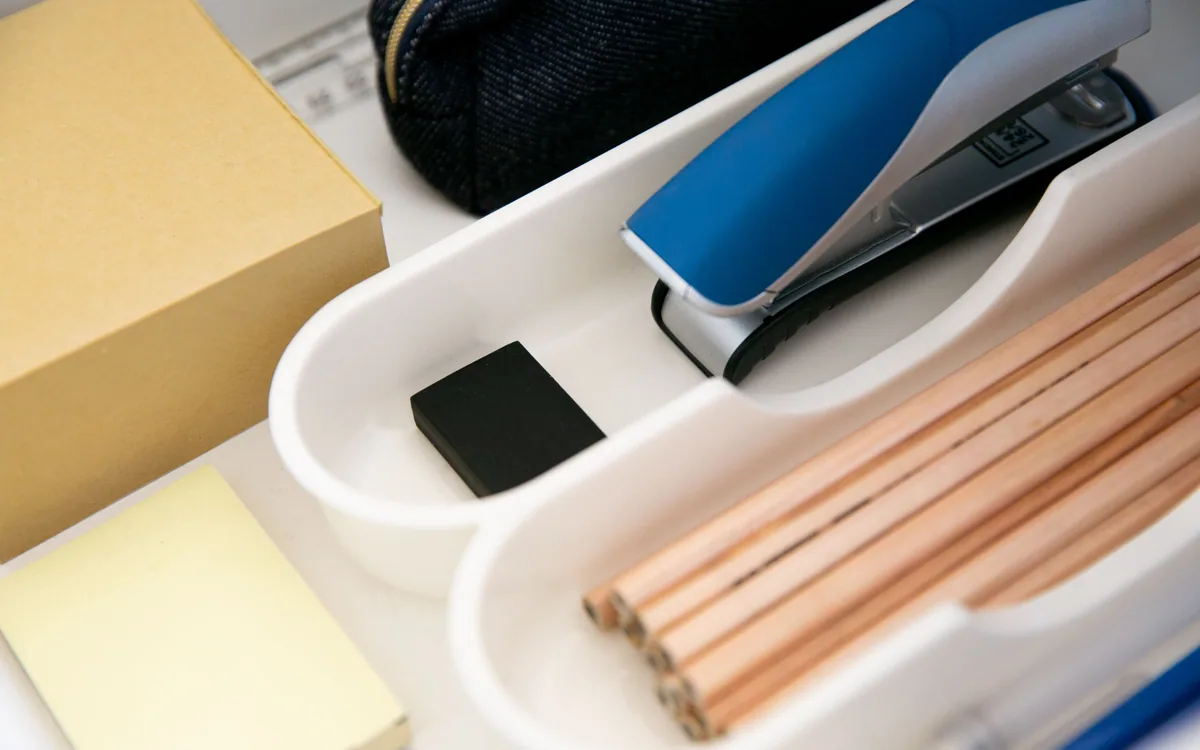
Arrange an office drawer around the objects you reach for
Use full-size paper shapes to place pens, tools, and small accessories in a drawer you can close and use.
Read the guide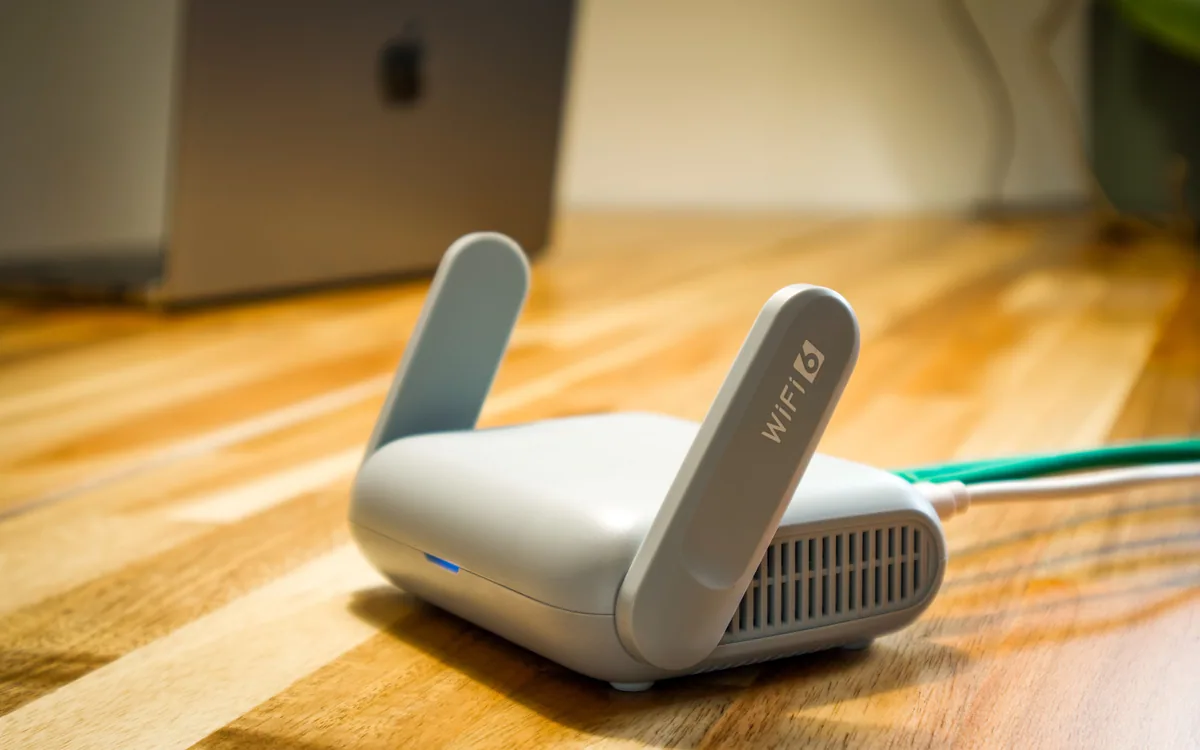
Find the update policy before buying a connected device
Check when security support starts, what its minimum date covers, and which functions depend on online services.
Read the guide
Set up a first apartment by the jobs you need to do
Use the first week to finish daily tasks, measure the awkward spaces, and buy for the problems that repeat.
Read the guide