Smart plug or smart power strip: plan what each outlet controls
Map individual outlets, always-on equipment, and shared load limits before adding app controls.
As an Amazon Associate I earn from qualifying purchases. How our shopping links work.
The short answer
Choose separate plugs for separate locations and an independently controlled strip for suitable devices in one place. Verify each control and the combined load.
Draw the outlets before choosing the product
Write down each device you want to switch and where its plug reaches. A reading lamp beside a sofa and a display on a desk need control at two locations. A monitor and desk lamp beside the same receptacle can share one location while still needing different schedules.
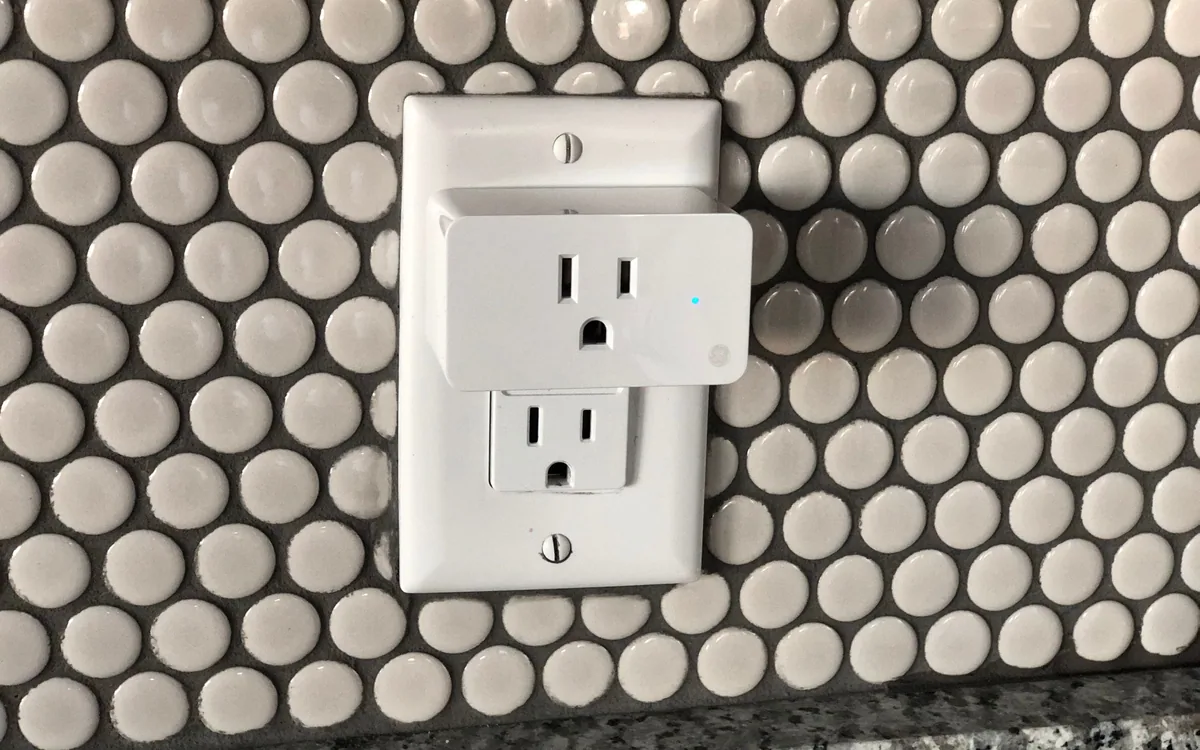
A single smart plug usually controls the load connected to its one receptacle. A smart power strip may provide several independently controlled outlets, a mixture of controlled and always-on outlets, or one shared switch. Inspect the control diagram for the exact strip. A row of sockets in a photograph does not show which ones the app can switch separately.
Separate devices that must stay on
Consider a desk with a monitor, lamp, router, and external backup drive. You may want the lamp on a timer and the monitor off after work. The router needs to remain available for the connected controls, and a backup drive should finish its task before losing power. Assigning the entire desk to one on/off command would conflict with those needs.
For a hypothetical layout, give the lamp and monitor separate controlled outlets. Leave the router outside that routine. Handle the backup drive according to the computer and storage maker's shutdown instructions. The goal is to write rules that reflect what the devices are doing, including work that continues when you leave the room.
Scroll to compare
| Device in this example | Intended behavior | Control to verify |
|---|---|---|
| Desk lamp | Scheduled evening lighting | Its own named outlet |
| Monitor | Switched after computer shutdown | Separate outlet or deliberate manual command |
| Router | Remains available | Excluded from the shutoff group |
| Backup drive | Completes backup and eject sequence | Kept out of a blanket timer |
This is a planning example, not approval to connect any particular appliance. Follow each device's instructions for supplying and interrupting power.
Read the total rating as well as each outlet's role
The U.S. Kasa HS300 is a useful documented example of a smart strip. Its maker specifies six independently controlled AC outlets and a maximum load of 15 A, 1875 W in total, with a 1/6 HP motor limit. Those six outlets share the strip's total rating. They do not each supply a separate allowance of 1875 W.
The U.S. Tapo P125M single plug has a different published specification: 15 A, 1800 W at 120 V for general-use or resistive loads and a 1/6 HP motor limit. A load class matters alongside its wattage. A plug that fits physically has not thereby been approved for every appliance or use.
Check the product label and manual, including indoor-use restrictions and the instructions of the connected equipment. A smart strip adds switching positions; it does not increase the capacity of the wall circuit. Avoid treating a software group as a substitute for an electrical-load check.
Measure the adapters and the reach to the switch
A wide power adapter can occupy the space needed by its neighbor. Look at outlet orientation and spacing with your actual adapters in mind. A compact strip may have enough receptacles on paper and too few accessible ones once the adapters are installed.
Plan where the strip rests and how you will reach its physical control. Include the attached cord's route, the furniture leg beside it, and clearance for the plugs. Follow the maker's placement and connection instructions. Do not solve a cord-length problem by improvising connections between multiple strips.
Separate single plugs make sense for equipment spread across a room. A strip makes more sense when several suitable devices are concentrated at one location. Use the floor plan and plug shapes to choose between them before comparing app features.
Match the app and controller to the intended routine
The HS300 uses 2.4 GHz Wi-Fi and the Kasa app. Its documentation describes schedules for individual outlets and grouping them in the app. That is a specific product's behavior, not a feature shared by every smart strip.
For Matter products, check your chosen platform's requirements. TP-Link states that most third-party Matter apps require a compatible controller. Some setup paths have exceptions with reduced functionality. The product's connection to Wi-Fi and the platform's need for a controller are separate questions.
Decide who needs access, whether anyone will control the devices away from home, and where the automation runs. Check what remains available if the internet connection or controller is unavailable. A local button, a local network command, and a remote app command follow different paths.
Name and verify each outlet individually
Set up one control at a time with an appropriate simple load, following its instructions. Use location names such as "desk lamp" instead of "socket 2". Confirm that the app switches the expected device, then check the schedule and any group membership.
Try the physical control and review the documented behavior after a power interruption. For a strip, verify whether that control affects one outlet or several. If another person uses the room, explain which equipment the button can turn off.
The P125M three-plug setup provides a model-specific example for separate locations. Before adding connected controls to equipment you plan to keep for years, also check the update policy. Keep the final outlet plan with your network information so you can recreate the arrangement after replacing a router or phone.
We may earn a commission from qualifying purchases.
Explore smart outlet controls on AmazonOpens Amazon.com. Check the exact model, seller, and current terms before ordering.
A useful next read.
Keep the whole purchase in view.
Tapo P125M: plan a three-plug setup and its limits
Assign three locations, verify each load, and choose the Tapo or Matter control path before setup.
Read the analysis
Check UL or ETL listing details for the exact product
Trace the mark, model designation, and certification scope instead of relying on a logo in a listing.
Read the guide
Find the update policy before buying a connected device
Check when security support starts, what its minimum date covers, and which functions depend on online services.
Read the guide