Choose a USB microphone around monitoring and mute controls
Separate recording gain, listening volume, monitor blend, and mute before choosing a microphone for calls or narration.
As an Amazon Associate I earn from qualifying purchases. How our shopping links work.
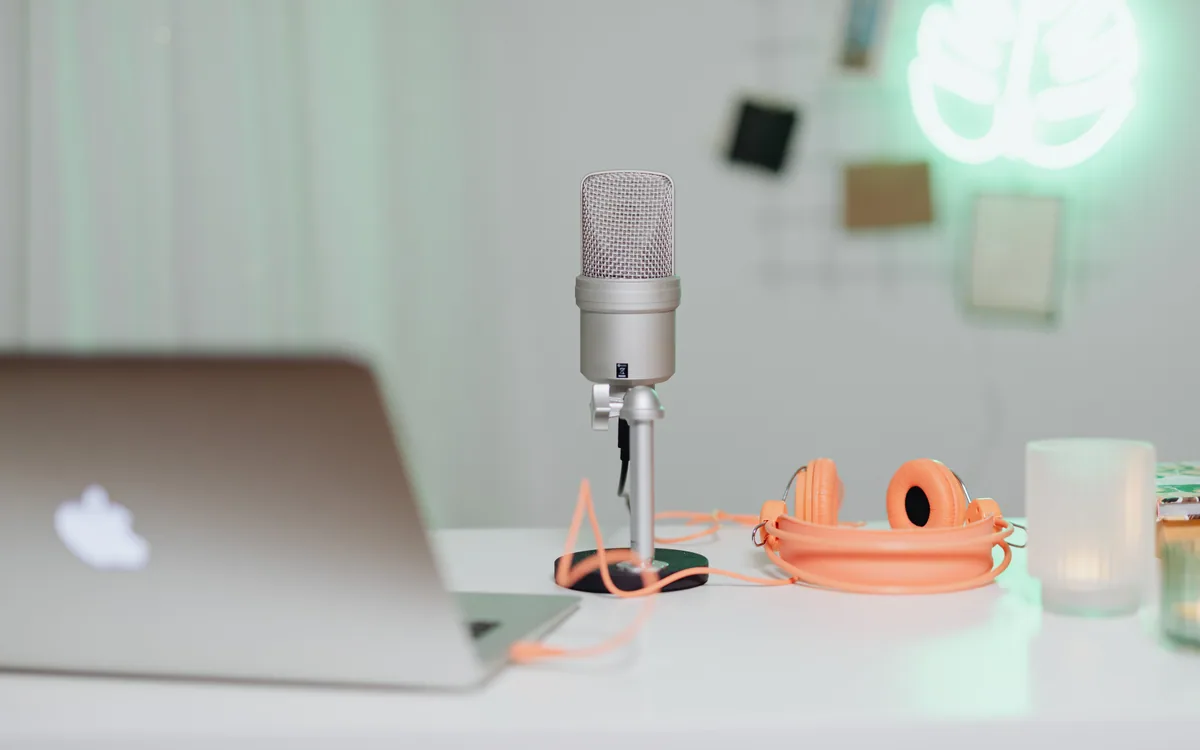
The short answer
Choose controls that fit the audio routing you need in your actual application. Verify mute scope, mounting, and device support for the exact microphone.
Decide what you need to hear while speaking
A USB microphone can send your voice to a computer and provide a separate place to listen. Before choosing one, decide whether you want to hear your own voice as you speak, the other person's call audio, or both. Those are routing choices that a headphone socket alone does not fully describe.
Direct monitoring sends the microphone signal to its own monitoring output. Software monitoring sends it through the recording application before returning it to you. The paths can feel different during speech, and enabling both may produce an unwanted doubled sound. Read the microphone's monitoring controls alongside your application's input and output settings.
For a narrated screen recording, being able to hear your voice and the computer's demonstration audio can be useful. For a routine call, you may prefer to hear only the other participants. Choose controls that support that listening arrangement.
Separate gain from listening volume
Gain changes the microphone signal level sent into the recording path. Headphone volume changes the level you hear. Turning down the headphone output does not necessarily fix a recording that is too loud.
Audio-Technica's US manual for the ATR2500x-USB describes a built-in direct-monitoring output and front controls for headphone volume. Shure's MV7 manual describes separate microphone level, headphone level, monitor blend, and mute controls. These are two examples of how differently manufacturers can arrange everyday adjustments.
Look for a clear description of each button or knob in the manual. A single dial may change function when pressed or when a mode changes. If you will adjust the microphone during a call, confirm you can identify the active control without leaving the application you are using.
Put mute within reach and check its scope
A physical mute control is useful when you need to stop sending audio quickly. Check how the microphone indicates its mute state and whether the control applies to the connection you will use. A microphone with both USB and XLR outputs may document different behavior for those paths.
The original Shure MV7 provides a mute control on its touch panel. Do not transfer that control description to the MV7X or MV7+, which are separate models. Likewise, a microphone's microphone-level buttons should not be assumed to include mute unless the manual says so.
After setup, watch the application's input meter while operating the hardware mute, then check the application's own mute separately. Recheck the state after reconnecting the microphone or changing applications. Hardware and application controls need not display the same state or control every recording path.
Make a routing sheet for one real job
Write down the input and output you plan to select in the operating system and in the application. If the application has separate settings, inspect those instead of relying only on the computer's default device.
For a hypothetical voice-over session, choose the USB microphone as the input, its monitoring socket as the listening output, and the recording application's playback output accordingly. Then decide whether the direct voice path or the software voice path will be active. The exact control names depend on the microphone and program.
Scroll to compare
| Control or setting | Question it should answer |
|---|---|
| Microphone input | Which device is being recorded? |
| Input gain | Is the recorded level appropriate when you speak normally? |
| Listening output | Where will playback and call audio go? |
| Monitor blend | Can you balance your voice against computer audio? |
| Hardware mute | Which microphone path does it stop? |
| Application mute | Does it affect this call, recording, or both? |
Save a short setup note for each application you regularly use. A call app and a recording program may need different routing even when the microphone stays plugged into the same port.
Check placement before buying a desk stand
Find the microphone's speaking direction in its manual. A side-address microphone receives speech at a marked side; an end-address microphone is used from its end. A product image can leave that distinction unclear.
Place a paper outline of the stand on the desk. Check that you can see the screen, reach the keyboard, and operate mute in the proposed position. If you want an arm, confirm the mount thread, supported weight, clamp range, and the desk's permitted clamping area. The accessory needs to fit both the microphone and the furniture.
Avoid choosing solely by a maximum digital sample rate. Your call or recording application may use different settings, and a specification does not establish how your voice will sound in your room. Placement and an actual sample recording remain necessary after installation.
Verify the computer and software requirements
Read the current manufacturer compatibility information for your operating system, connector, and chosen app. The Audio-Technica manual includes Windows and Mac setup instructions, but its screenshots show older operating-system versions. Use the current OS guidance for microphone permissions instead of expecting every menu to match.
If you need the mic on a phone or tablet, verify that exact device and connection. Confirm support in the microphone maker's compatibility list and the device's audio requirements.
Choose the microphone whose documented controls cover your routing sheet and whose mounting works at your desk. For camera placement during the same call, the webcam guide considers the visible frame. The office drawer guide can help keep small recording accessories together when the session ends.
We may earn a commission from qualifying purchases.
Explore USB microphones on AmazonOpens Amazon.com. Check the exact model, seller, and current terms before ordering.
A useful next read.
Keep the whole purchase in view.
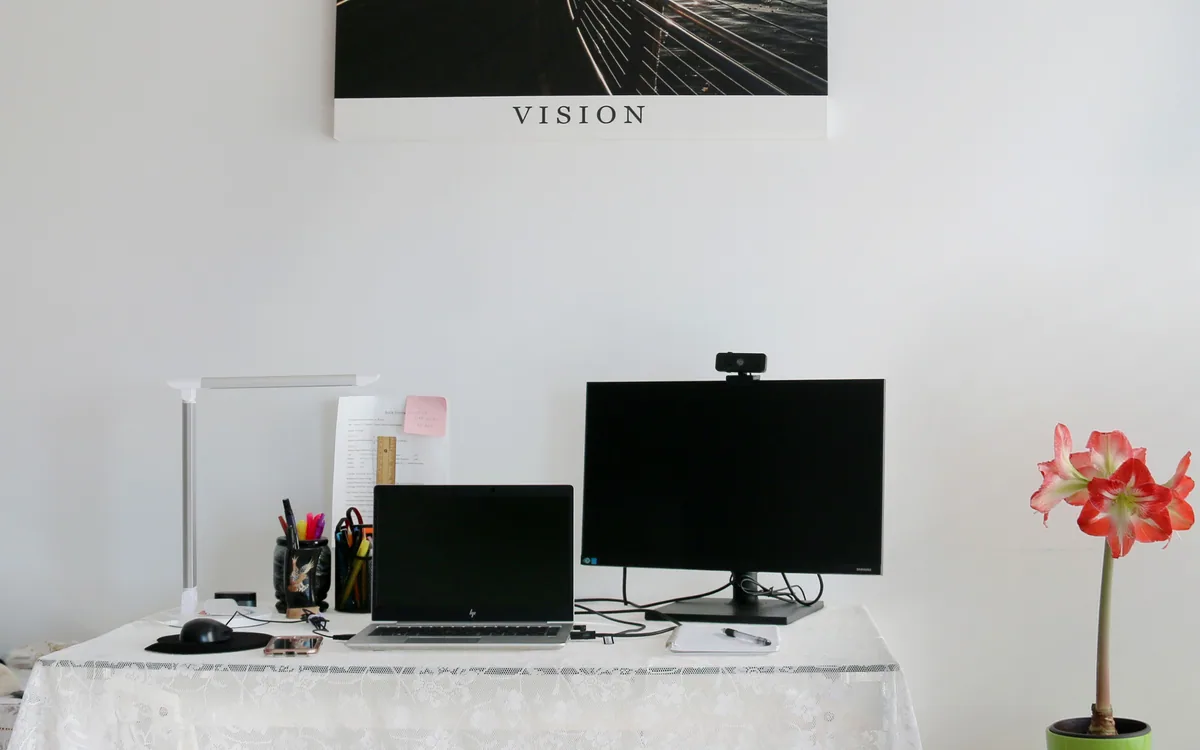
Choose a webcam for the frame you need to show
Compare field of view, focus, mounting, and shutter controls around the picture you need during a call.
Read the guide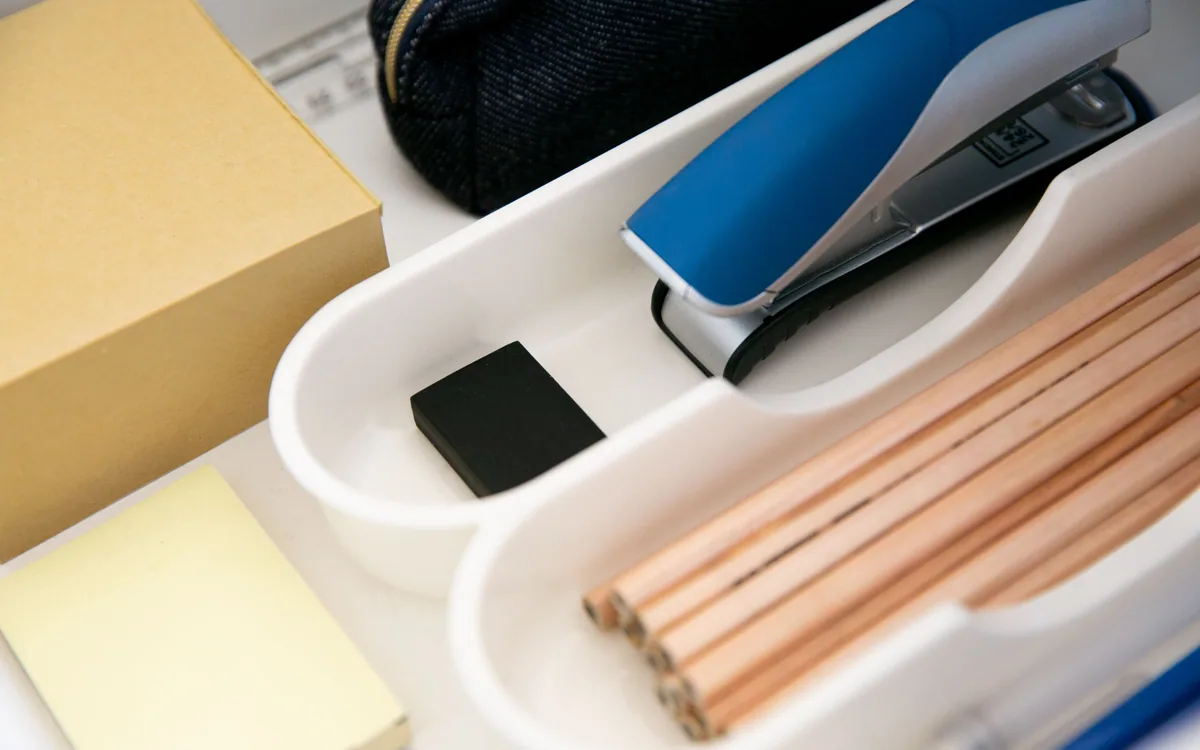
Arrange an office drawer around the objects you reach for
Use full-size paper shapes to place pens, tools, and small accessories in a drawer you can close and use.
Read the guide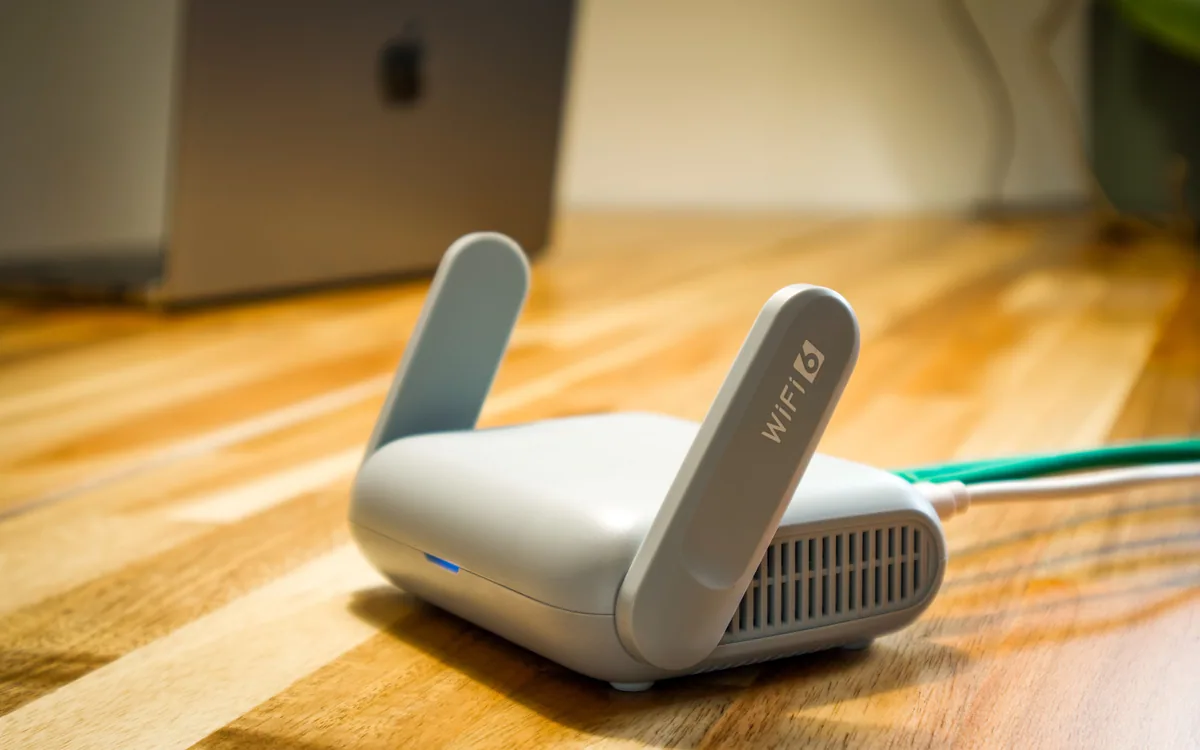
Find the update policy before buying a connected device
Check when security support starts, what its minimum date covers, and which functions depend on online services.
Read the guide